Reports and Graph Health
Outcome
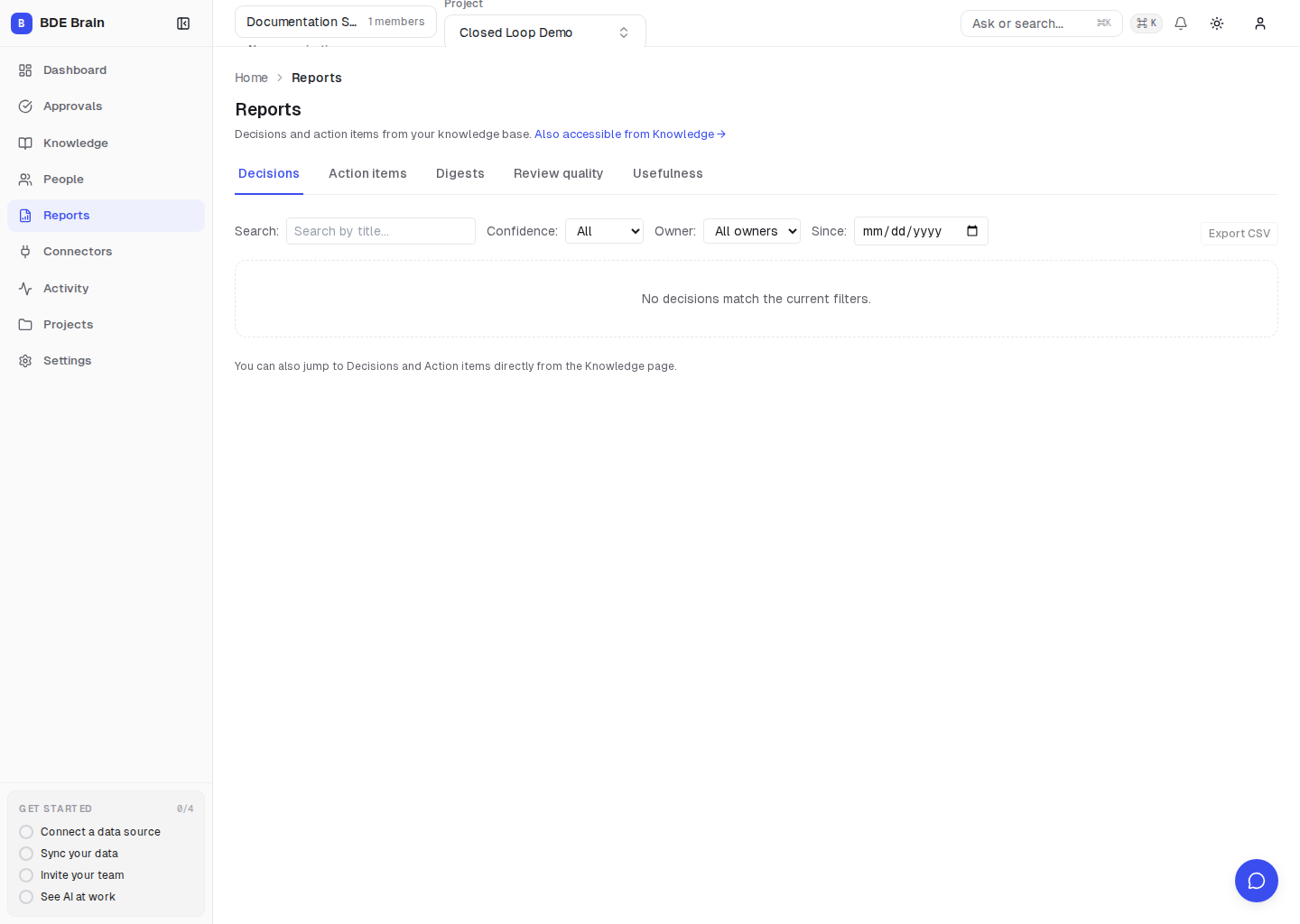
You will see decisions, action items, digests, result quality and usefulness, and gaps in graph relationships.
Steps
- Open Reports.
- Select a tab: Decisions, Action items, Digests, Review quality, or Usefulness.
- To find action items without tickets, select Issue → Not yet a ticket.
- On the Dashboard, open the Graph Health card.
- Follow a recommendation from the card. Its link should open a filtered action list or the relevant connection page.
Understand the metrics
- Ticket created (
filed) — a ticket or pull/merge request points to the action item with aresolvesrelationship; - Not yet a ticket (
unfiled) — there is no such incoming relationship; - ticket coverage — the share of action items with this canonical relationship;
- stale source — a source has not updated within its expected schedule;
- quality — the quality score of an AI result, not infrastructure health;
- usefulness — a user's usefulness rating, not graph completeness.
Verify the result
A Graph Health recommendation opens a specific list where you can address the problem by connecting a source, creating tickets, or reviewing relationships.
Common problems
| Symptom | Likely cause | What to do |
|---|---|---|
| Coverage is low even though tickets exist | The tickets have similar text but no resolves relationship |
Create or confirm the relationship through an available workflow |
| Data is stale | The connection has not synchronized recently | Check Connectors and Activity |
| Metrics on different tabs do not match | They measure different properties | Compare coverage, quality, and usefulness separately |
Next step
If a metric does not recover, open Troubleshooting.